

PBX Settings
PBX Settings
Section titled “PBX Settings”Nova PBX → System → PBX Settings holds configuration that applies to your whole phone system rather than any single extension: the default outbound caller ID, the SIP registration access list, the provisioning PIN your desk phones use to fetch their configuration, and whether every extension must carry a dispatchable 911 location.
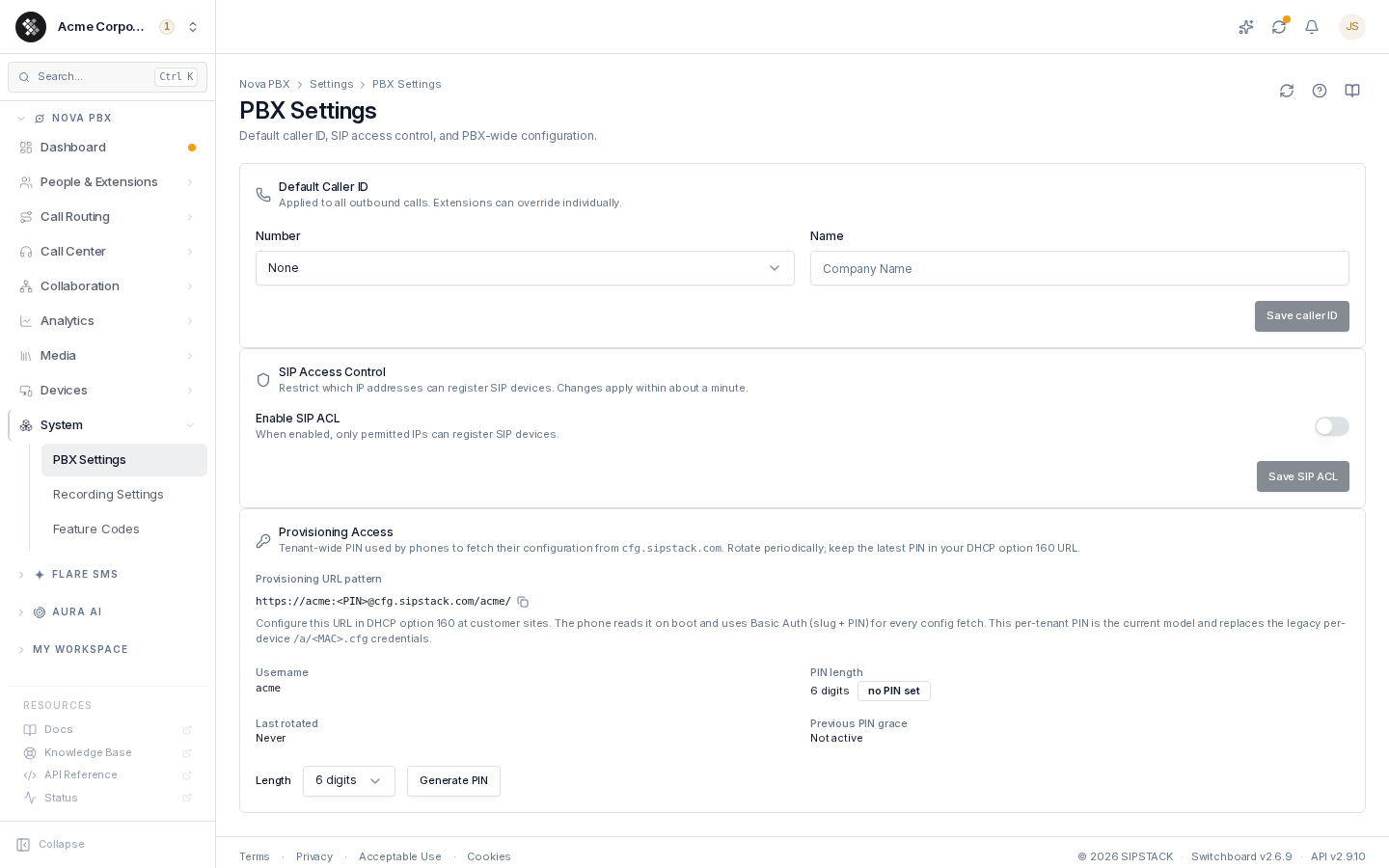
Default Caller ID
Section titled “Default Caller ID”The number and name presented on outbound calls when an extension doesn’t set its own caller ID. Extensions can override this individually on their own settings; if they don’t, this default applies.
| Field | What it does |
|---|---|
| Number | Pick from your organization’s voice-capable phone numbers. Only active numbers from your inventory are offered — you cannot present a number you don’t own. Select None to clear the default. |
| Name | The display name (CNAM) you want presented, e.g. “Acme Corp”. Leave blank to clear. |
Click Save caller ID — the change is staged and pushed to your PBX automatically; the next outbound call uses the new value.
SIP Access Control
Section titled “SIP Access Control”An IP allow/deny list for SIP device registration. When disabled (the default), any IP may attempt to register — registration still requires valid SIP credentials. When enabled, the rules below decide which networks may even try.
Typical uses:
- Lock to office IPs — only desk phones in your physical offices can register.
- Allow a VPN range — extend access to remote workers on your VPN’s CIDR block.
- Block known-bad addresses — deny specific networks you’ve seen probing registration.
Configuration
Section titled “Configuration”| Field | What it does |
|---|---|
| Enable SIP ACL | Master switch. Off = all IPs may attempt registration. |
| Default action | What happens when no rule matches. Permit all (allowlist mode) lets everything through except your deny rules; Deny all (blocklist mode) blocks everything except your permit rules. |
| Rules | An ordered list of permit / deny entries against an IP or CIDR network, with an optional label. Rules are evaluated in order — first match wins. |
Networks must be a bare IP (192.0.2.10) or CIDR notation (192.0.2.0/24, IPv6 supported). Hostnames are not accepted, and invalid entries are rejected at save time.
Click Save SIP ACL, then apply your staged changes (the Apply Changes bar at the top of the portal) to push the new list to your PBX. Changes take effect within about a minute of applying.
Provisioning Access
Section titled “Provisioning Access”Desk phones fetch their configuration from cfg.sipstack.com using a single organization-wide PIN (HTTP Basic Auth: your tenant slug as the username, the PIN as the password). There are no per-device passwords. This section shows the URL to configure in DHCP option 160 at your sites, and manages the PIN itself.
| Field | What it shows |
|---|---|
| Provisioning URL pattern | https://<slug>:<PIN>@cfg.sipstack.com/<slug>/, with the PIN masked. Copy it and substitute the real PIN. The register-device page shows the same value, labelled Provisioning URL (DHCP option 160). |
| Username | Your tenant slug (the Basic Auth username). |
| PIN length | 6, 8, or 10 digits — 8 for organizations created since September 2026; existing organizations keep the length they have until you choose another. |
| Last rotated | When the PIN was last regenerated. Blank until someone has generated one. |
| Previous PIN grace | Whether the previous PIN is still within its 24-hour grace window. |
Generating or rotating the PIN
Section titled “Generating or rotating the PIN”Every organization is created with a PIN already hashed in place, but it has never been shown to anyone. Last rotated reads Never until someone reveals one, and registering phones is blocked until that first reveal — nobody could put an unknown PIN into DHCP. Because a PIN technically exists from the start, the button reads Regenerate PIN from day one; it reads Generate PIN only for an organization that has no PIN at all.
-
Pick a Length (6 / 8 / 10 digits) and click Regenerate PIN (Generate PIN if the organization has no PIN at all).
-
Confirm in the dialog. If a PIN is already in use, the old one stays valid for a 24-hour grace window — both old and new PINs are accepted during that time.
-
The new PIN is revealed once, together with the full provisioning URL. Save it immediately.
The PIN is shown once when generated. Lost it? Rotate it in Provisioning Access — phones keep working on the old PIN for 24 hours.
-
Update DHCP option 160 at every site within the grace window, or phones will lose provisioning access when the old PIN expires. Entry steps per DHCP server →
See Devices and Phone Profiles for what provisioned phones actually receive.
Emergency calling (911)
Section titled “Emergency calling (911)”Require a 911 location on every extension. When this is on, an extension can only be saved once you have told us which physical address it dials 911 from. If you try to save without one you get a message asking you to pick a location — add one under Nova PBX → Locations first if the list is empty.
Every change to this setting is recorded in your Audit Log, including who made it and when. The same setting is also offered in step 1 of Set Up Your Team, pre-filled with the value your account currently has.
While the requirement is on, your Finish setup checklist adds an Add your office location step ahead of Create an extension, because the extension cannot be saved until the location exists.
Troubleshooting
Section titled “Troubleshooting”Saved an ACL rule and now phones can’t register. The rule set most likely excludes the network the phones are on. Disable SIP Access Control, save, apply, then re-add the missing CIDR before re-enabling.
Caller ID changed but recipients still see the old name. Carrier CNAM caching — see the tip above. The number updates immediately; the name lags.
How do I undo a change? Settings on this page have no undo — re-edit and save the previous value. The Change Log shows what was applied and when.