

In-Call Controls
In-Call Controls
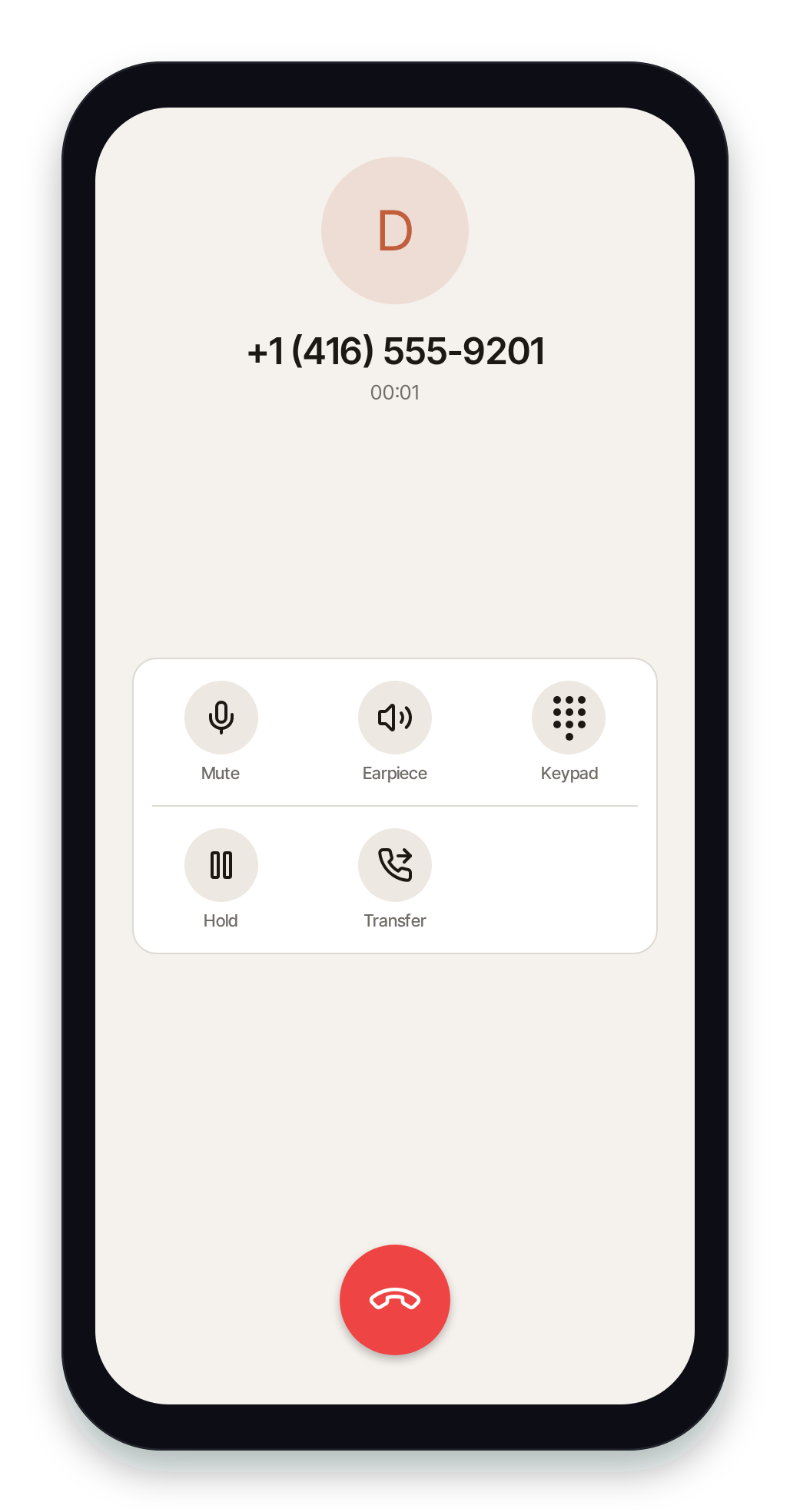
Section titled “In-Call Controls”While you’re on a call, Pulse shows the full-screen in-call screen with the other party’s name or number, a live call timer, and the controls below. The screen appears automatically when a call connects and dismisses itself when the call ends.
Who’s on the call
Section titled “Who’s on the call”At the top of the screen Pulse shows who you’re talking to:
- Name — when the caller is matched to a contact (your organization’s directory, your device’s address book, or a connected CRM), their name shows as the primary line. If no match is found, the formatted phone number is the primary line instead.
- Phone number — the caller’s actual number is always shown. When a name is matched, the number appears as a secondary line beneath the name (and company), so you can still see and confirm the number you’re connected to.
- Caller location — a city-and-state line derived from the number’s area code (for North American numbers), e.g. Toronto, ON or Los Angeles, CA. This is shown for every call, matched or not. Because it’s based on the area code, the city is the area code’s representative metro paired with its state or province — not a guaranteed current city, since numbers can be ported.
CRM screen-pop
Section titled “CRM screen-pop”If your organization has connected a CRM (a Nova-Ultra feature configured in Switchboard), a call from a known record shows a screen-pop so you know who you’re talking to. Instead of a bare number, the call screen shows the matched record’s name and company, a short deal summary when there’s an open opportunity (for example, Open deal · Negotiation · $48,000), and a CRM · <record type> label (for example, CRM · Contact) so you know the identity came from your CRM. The number and caller location are shown alongside the CRM details. Tap Open in CRM to jump to the caller’s full record in your browser.
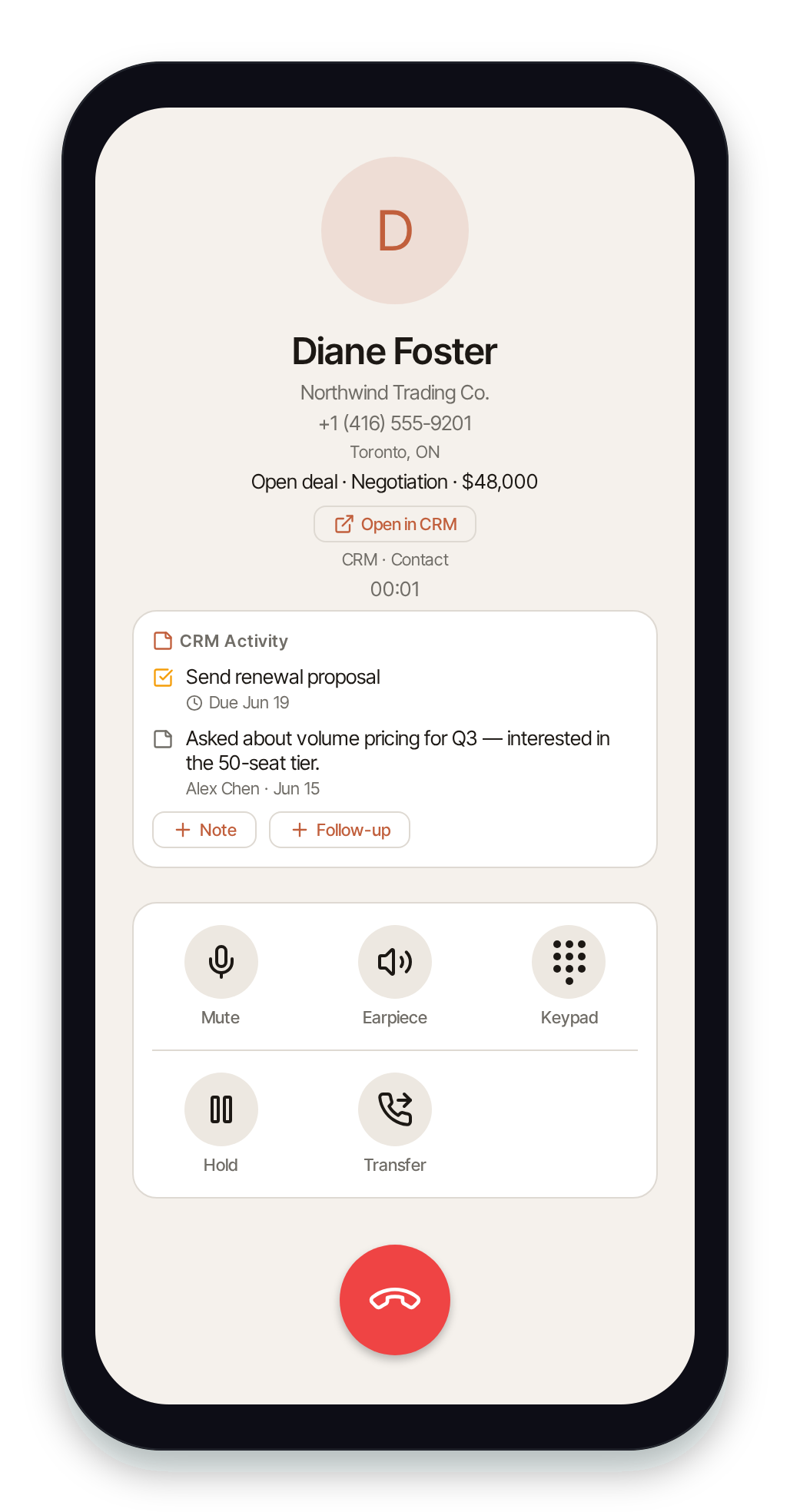
The screen-pop appears on both the ringing screen (so you know who’s calling before you answer — see Incoming Calls) and the in-call screen once connected. Once the call connects, a CRM Activity panel also appears for the matched record, showing recent notes and open follow-up tasks. You can add a Note or create a Follow-up right from the call screen.
The controls
Section titled “The controls”The controls are laid out as a grid of tiles:
- Mute / Unmute — silence your microphone. The tile highlights while you’re muted.
- Audio output — choose where the call audio plays (see Audio routing below).
- Keypad — open the in-call dialpad to send tones (see Sending touch-tones).
- Hold / Resume — put the call on hold; the other party hears nothing until you resume.
- Transfer — send the call to someone else (see Transferring a call).
At the bottom, the red hang-up button ends the call.
The call timer
Section titled “The call timer”Once a call connects, the duration counts up under the name. While a call is on hold it shows On hold instead of the timer; outbound calls show Calling… and then Ringing… before they connect.
Audio routing
Section titled “Audio routing”Tap the audio output tile to open the route picker and choose where call audio plays:
- Earpiece — the phone’s ear speaker (default when held to your ear).
- Speaker — hands-free speakerphone.
- Bluetooth — a connected Bluetooth headset or car kit.
- Headphones — wired headphones plugged into the device.
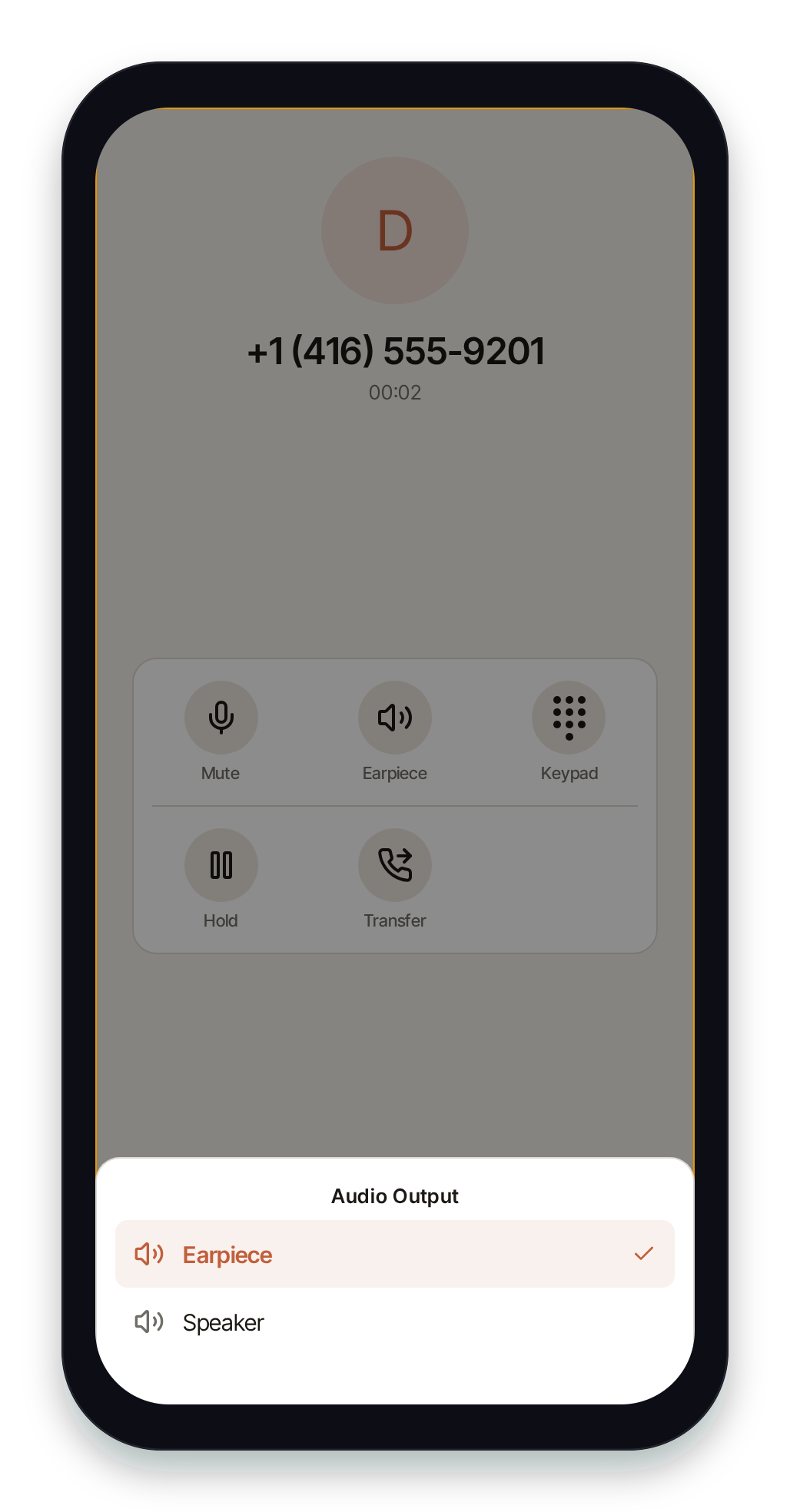
Pulse lists the routes that are currently available — the Bluetooth and Headphones options appear automatically when those devices are connected, and the tile updates if you plug or unplug a headset mid-call. On Android, Pulse switches to a connected Bluetooth headset automatically (and back to it if it reconnects mid-call) unless you’ve picked another route during that call — see Bluetooth headsets on Android. On phones, the proximity sensor turns the screen off when you hold the device to your ear.
On the desktop app and in a desktop web browser there is no earpiece. The audio output tile shows the speaker in use (for example System Default) and opens a list of your computer’s output devices, the same list as Audio Devices. Your choice takes effect immediately, during the call. Where speaker selection isn’t supported (such as the desktop app on a Mac), the tile doesn’t appear and call audio plays on your system’s default speaker; change it in your computer’s sound settings.
Outgoing calls
Section titled “Outgoing calls”On iOS and Android, an outgoing call uses its audio route from the moment you dial. The ringing tone plays where the call will be heard: on the earpiece (or a connected headset), or on the speaker if Start on Speaker is on. When the other person answers, the call stays on that route; it does not jump from the speaker to the earpiece. If you change the route while the call is ringing, Pulse keeps your choice when the call connects. Incoming calls still ring on the speaker.
Sending touch-tones (DTMF)
Section titled “Sending touch-tones (DTMF)”Tap Keypad to open the in-call dialpad. The digits you press are sent as touch-tones (DTMF) — use it to navigate phone menus (“press 1 for sales”), enter conference PINs, and so on. Digits you’ve sent show across the top so you can see what you’ve entered. Tap the × to close the keypad and return to the controls; the red button on the keypad still hangs up.
Transferring a call
Section titled “Transferring a call”Tap Transfer to send the call to another extension or number. Choose the target from the Dialpad (type a number) or the Directory (search your org’s extensions), and pick a transfer type:
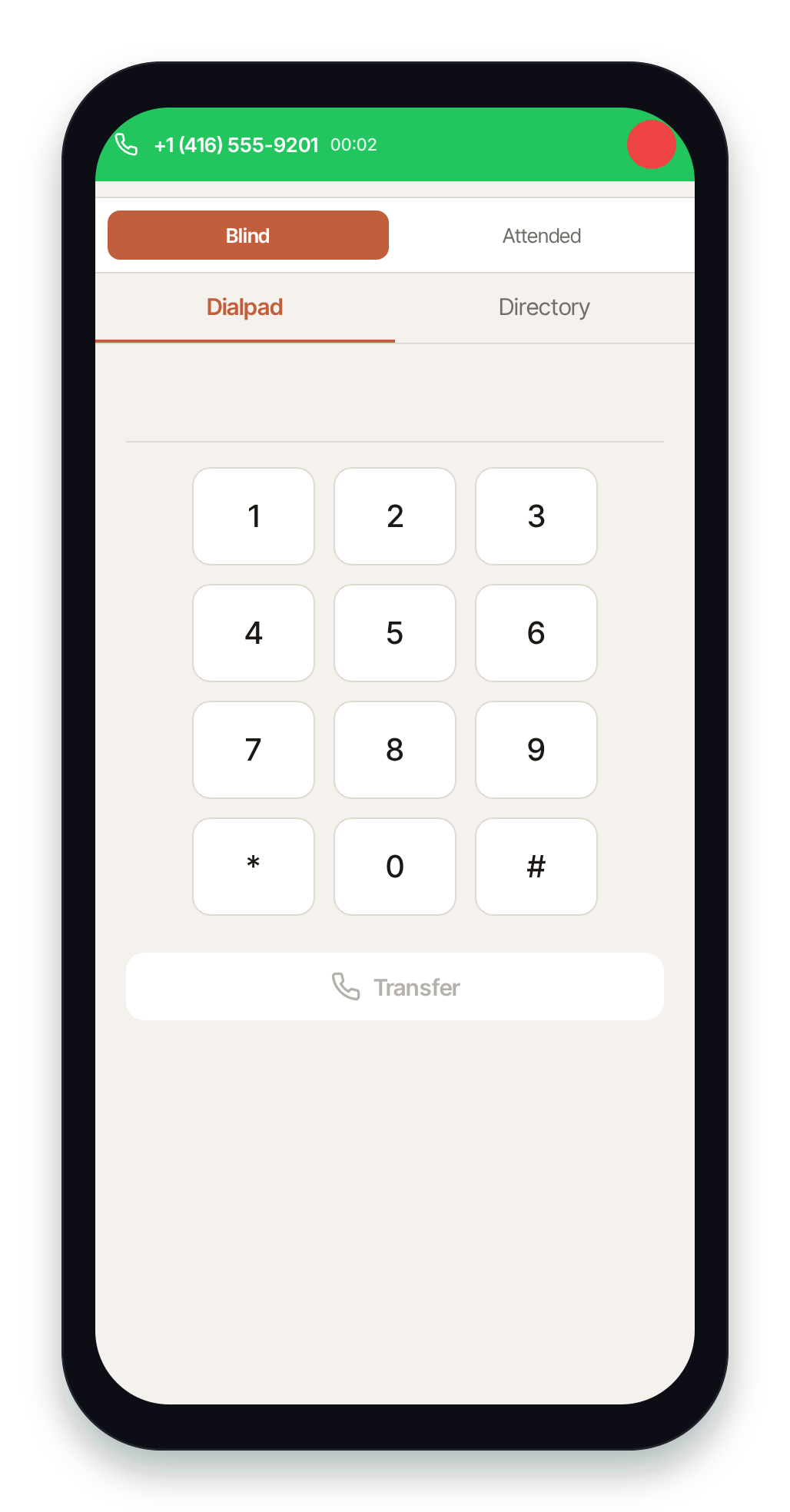
- Blind transfer — hand the call off immediately. Pulse connects the other party to the target and drops you out of the call. Tap Transfer to complete.
- Attended (warm) transfer — talk to the target first. Pulse puts your caller on hold and dials the target (Consult). Once they answer and you’ve spoken, tap Complete Transfer to connect the two parties, or Cancel — Return to Primary Call to scrap the consult and go back to your original caller.
A target must be at least a 3-digit extension or number.
CRM notes & follow-ups on a call
Section titled “CRM notes & follow-ups on a call”When the caller is matched to a CRM record, the CRM Activity panel appears on the in-call screen (once the call is connected) so you can see and capture context without leaving the call:
- Open follow-ups — the record’s open follow-up tasks, each with its due date.
- Recent notes — the latest notes on the record, with who wrote them and when.
You can also log activity against the record from the call itself:
- Tap + Note to add a note — type it and tap Save Note.
- Tap + Follow-up to create a follow-up task — give it a title and tap Create.
New notes and follow-ups are written back to your CRM and the panel refreshes in place. If the matched record has no notes or tasks yet, the panel shows No notes or follow-ups yet. with the same + Note / + Follow-up buttons, so you can always log the first one. The panel is shown only while a call is connected — the ringing screen stays focused on answering.
A second call comes in (call waiting)
Section titled “A second call comes in (call waiting)”If another call arrives while you’re already talking, an Incoming banner appears at the top of the in-call screen with three choices:
- Hold & Answer — put your current call on hold and answer the new one (recommended).
- End & Answer — hang up the current call and answer the new one.
- Decline — reject the incoming call and stay on your current one.
When you have a call on hold, an On hold pill shows the held party. Tap Swap to switch back and forth between the two calls.
If you don’t respond to a waiting call, it stops ringing after a while and is treated as unanswered rather than busy.
If a regular mobile phone call interrupts a Pulse call, Pulse puts the Pulse call on hold and takes it off hold when the phone call ends.
Switching networks during a call
Section titled “Switching networks during a call”If your phone moves between Wi-Fi and mobile data during a call (for example, you walk out of Wi-Fi range), Pulse reconnects on the new network and keeps the call going. You may hear a short gap in the audio while it switches.
- While Pulse is reconnecting, hold, transfer, touch-tones and answering a second call are paused. Try again once the audio is back.
- If Pulse can’t reconnect within about 20 seconds, the call ends and Pulse tells you the connection was lost. Pulse also ends the call on the SIPSTACK side as soon as it can reach the network again, so the line doesn’t stay open.
- With WiFi-Only Calling turned on, Pulse doesn’t use mobile data, so losing Wi-Fi still ends the call. See Calling Preferences.
Ending a call
Section titled “Ending a call”Tap the red hang-up button to end the call. Pulse briefly shows Ending call… during teardown, then returns you to the previous screen.
Related
Section titled “Related”- Making Calls (Dialpad) — place a call.
- Incoming Calls — answer and decline ringing calls.
- Call History — see and redial past calls.
- Integrations hub — connect a CRM to enable caller context, notes, and follow-ups on calls.
- Recording Settings — configure call recording for your extensions in Switchboard.